There are currently three direct ways to import an external skill.
  1. Open an existing skill share link from share.openwork.software
  2. Paste a skill into the share site, then import it
  3. Create a skill with Create skill in chat and paste the external skill into that flow
There is another option if you’re technical: place it directly in .opencode/skills/<skill-name>/SKILL.md inside your workspace. We recommend (1) and (3) because they match the built-in OpenWork flows most closely.

Importing an existing skill with a share URL

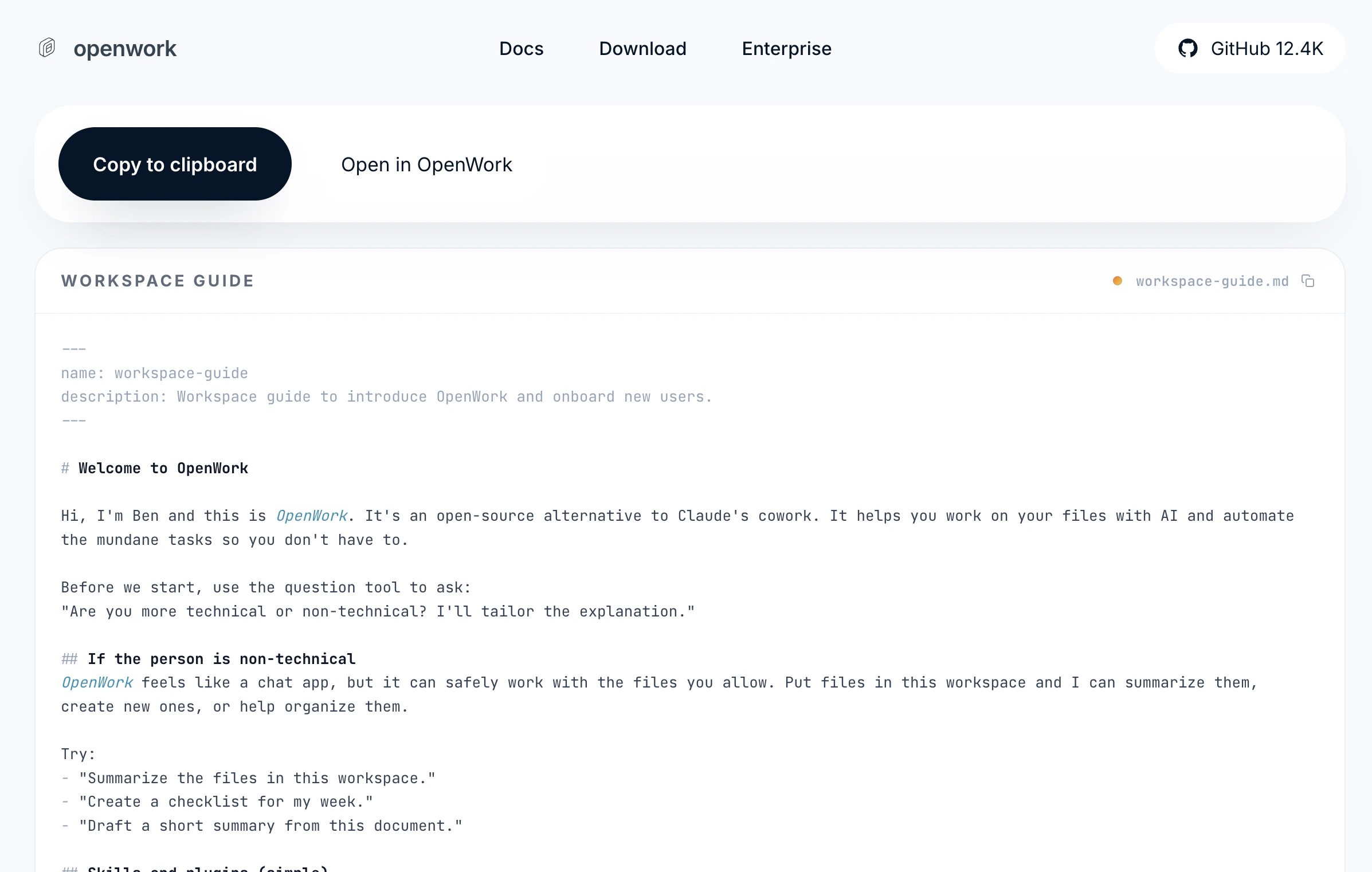
When you have an OpenWork share URL, click Open in OpenWork.
Share page with Open in OpenWork button
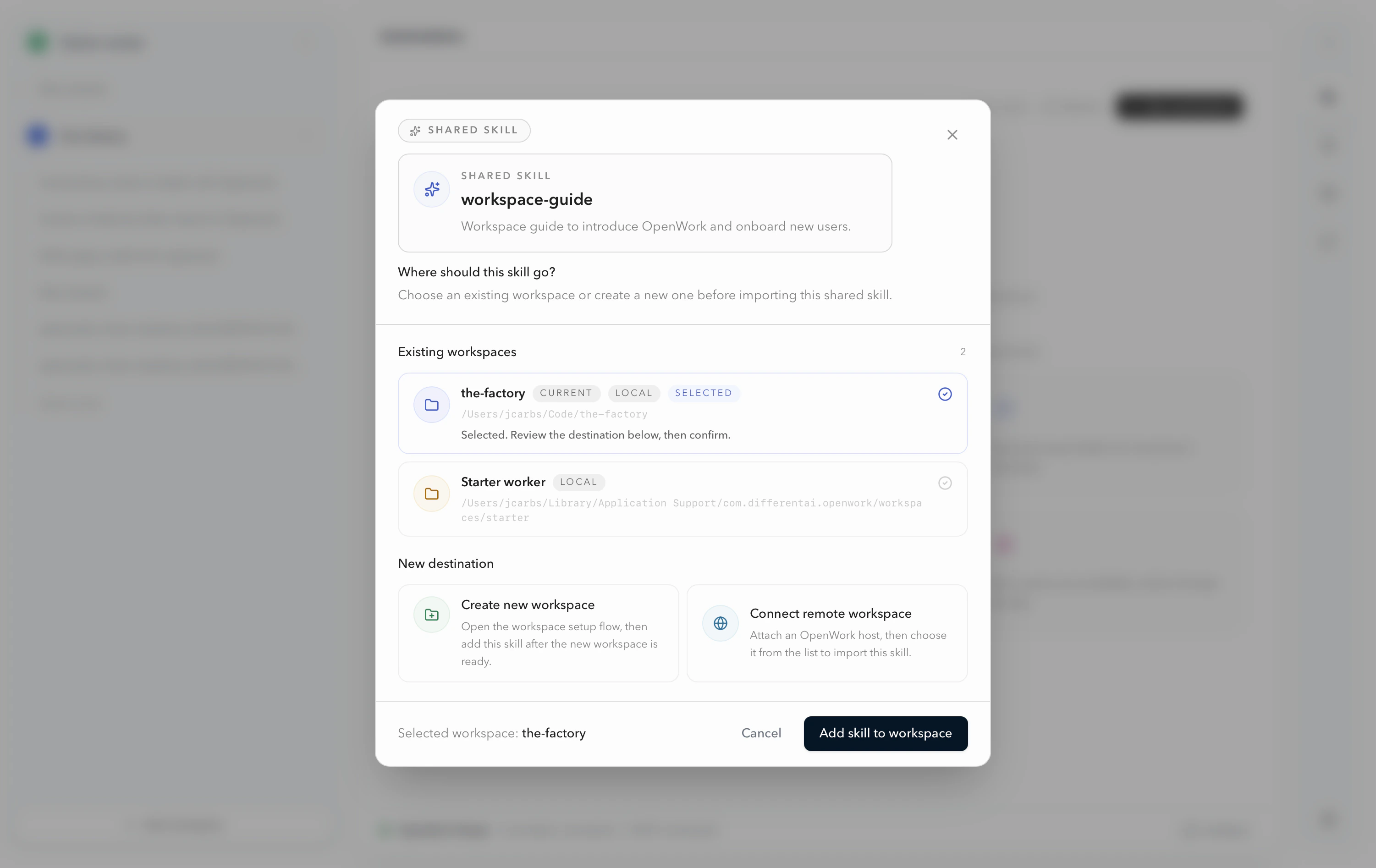
Then select the workspace where you want to install it (for example, the-factory).
Select workspace dialog for importing a skill
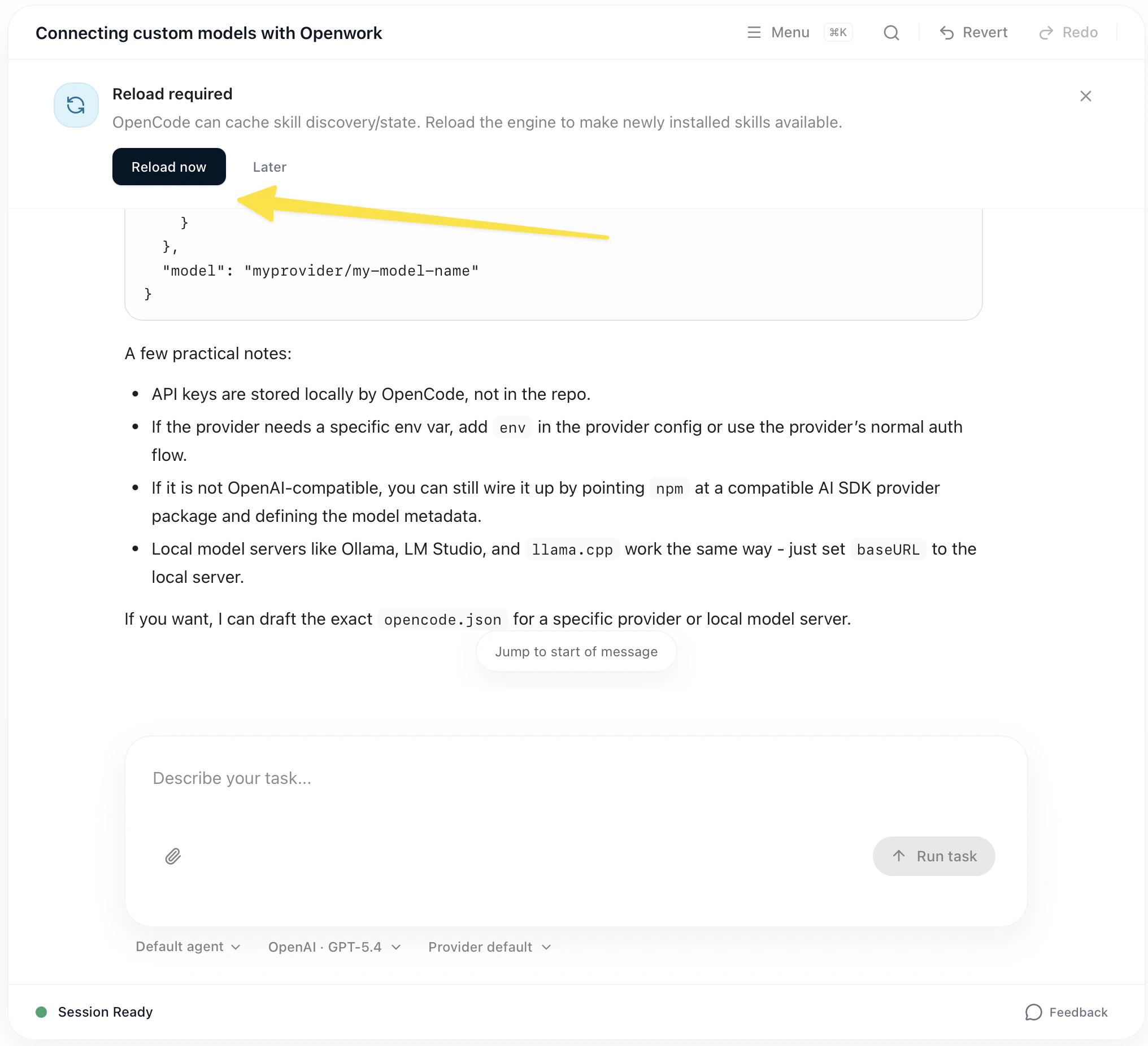
Once the skill is installed, OpenWork prompts you to reload so it can load the new skill into your workspace.
Reload required banner after installing a skill
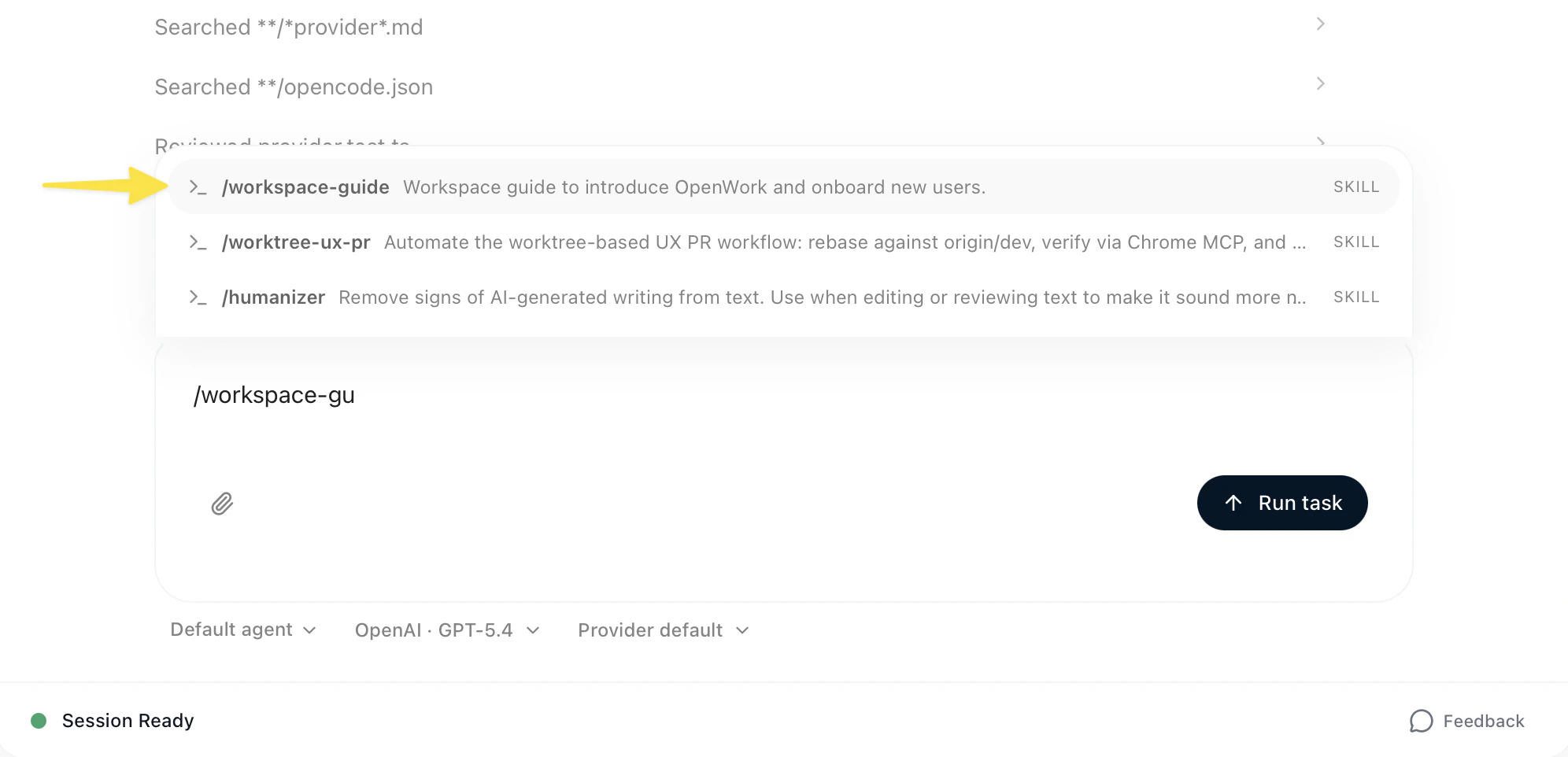
After you reload the app, you can use the skill directly in that workspace:
Using an imported skill in chat with autocomplete

Pasting a skill into the share site, then importing it

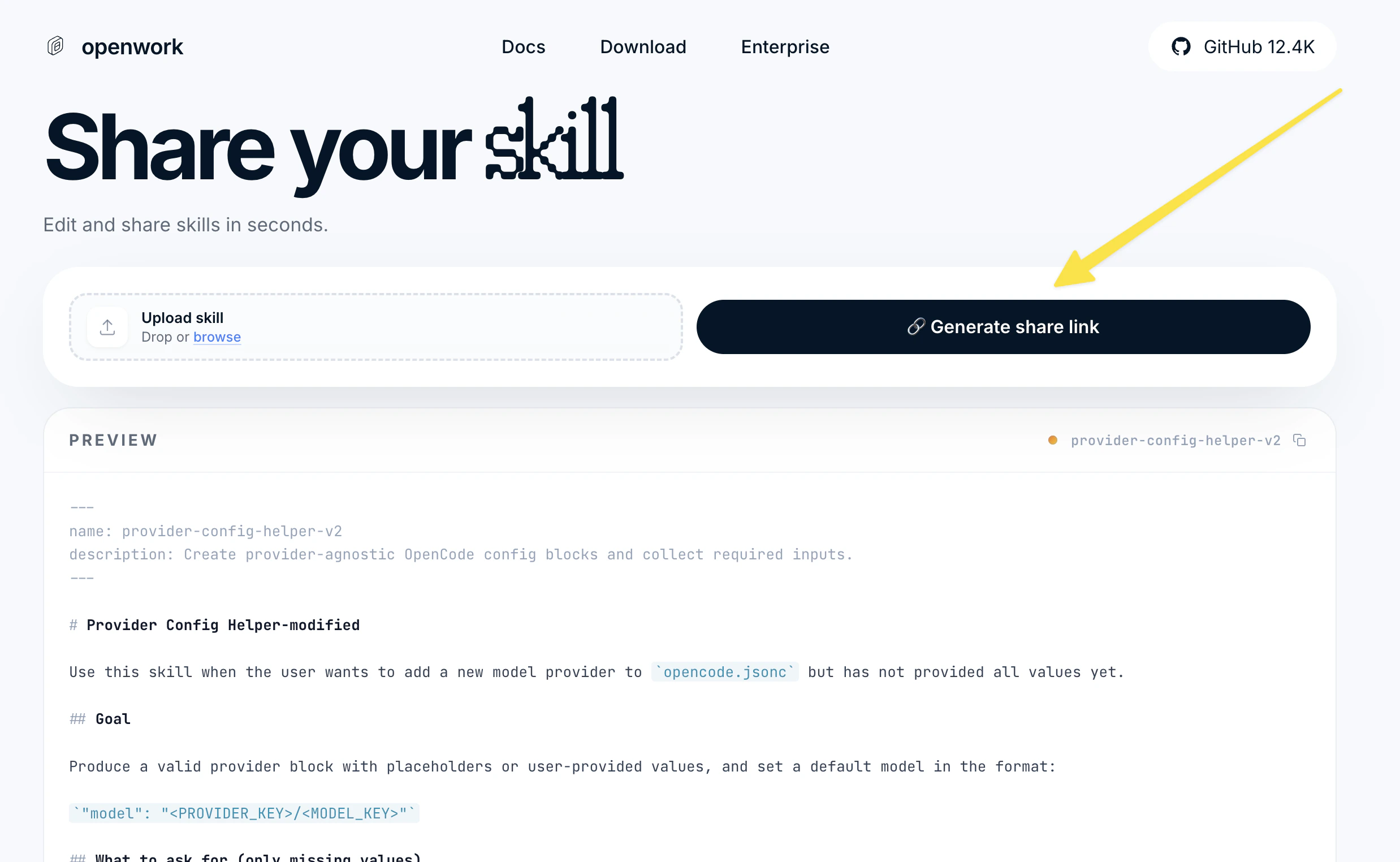
Start at the OpenWork share page without any skill loaded. Paste or upload the skill there, then click Generate link:
Share your skill page with Generate share link button
To import an external skill, the file needs to follow this structure:
---
name: name of the skill
description: one line description of what the skill does
---

Any markdown text with instructions and description of the skill
Make sure the file follows that format when importing skills from other marketplaces or other teams. That redirects you to the share page for the valid skill, and from there you can follow the steps from the previous section.

Creating a skill with /skill-creator in chat

Type /skill-creator in chat, then either paste the external skill you want to import or describe what you want the skill to do. OpenWork will generate a workspace-local skill from that input.
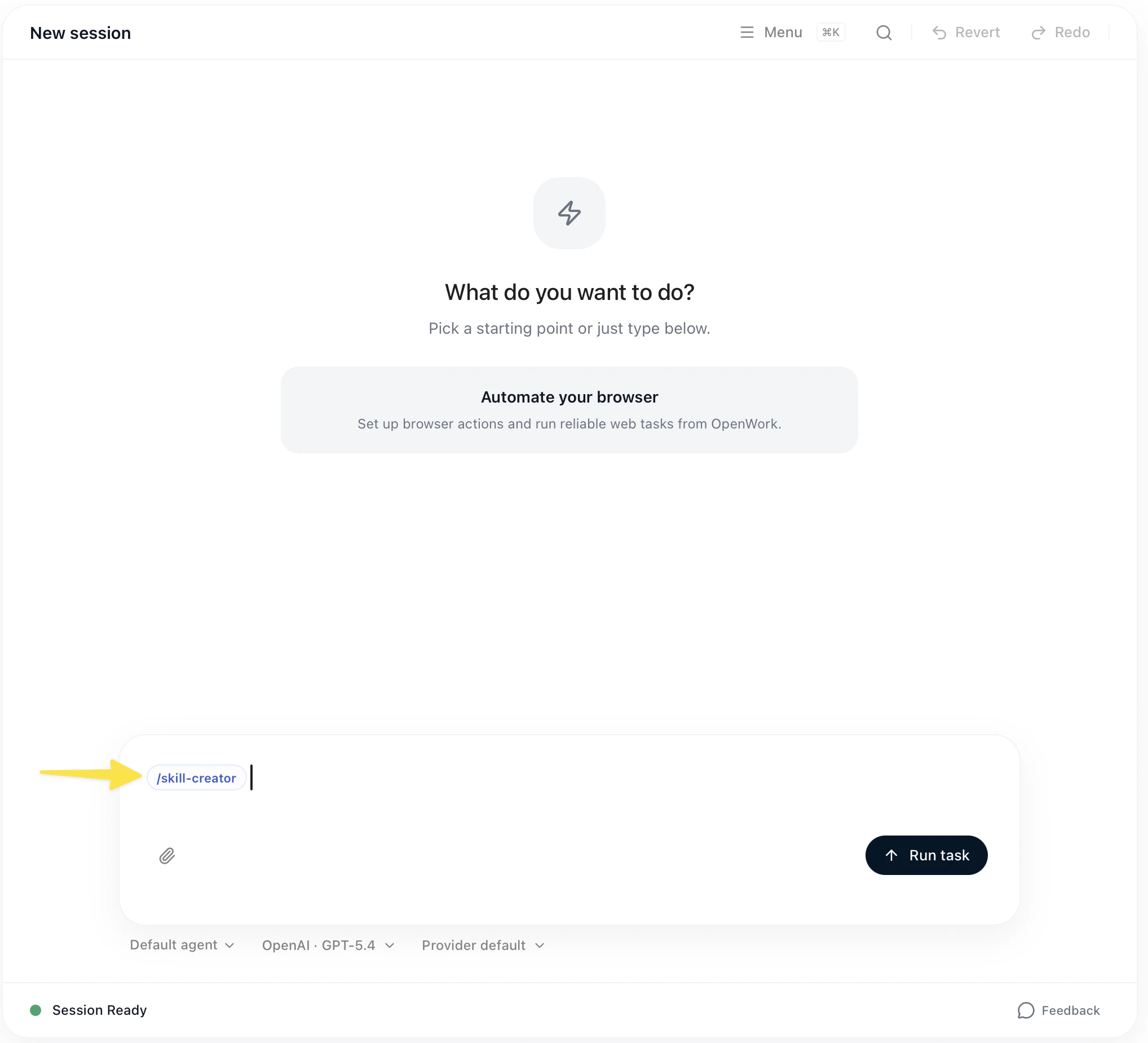
Using the /skill-creator command in chat