slack with your openwork workspace, you will need the following:
- Valid slack admin permissions to add an app
- Create a simple slack app
- Connect said slack app with your workspace
Disclaimer: We recommend setting the slackbot with a remote workspace instead of in your local machine to ensure there’s hardware isolation between the remote workspace the ai can access and your local machine.
Having the right slack permissions
You should either be a slackowner, admin or have the right level of approval to be able to add an app into slack.
Creating a slack app
Go to Create new app in Slack. What you need to obtain are thexoxb (bot) and xapp (Websocket) tokens to paste into Openwork. For more guidelines, questions and instructions regarding slack, please follow own slack’s own documentation.
- Create the App Manifest: Go to
api.slack.com/apps→Create New App→From a manifest→ pick your workspace. - Install to Workspace & Grab Tokens After creating the app:
- Install App —
sidebar→Install App→Install to Workspace→ authorize. - Copy the Bot token (
xoxb-...) — shown right on the “Install App” page after authorization.
- Generate an App-Level Token (for Socket Mode)
- Sidebar →
Basic Information→ scroll toApp-Level Tokens. - Click Generate Token and Scopes → add scope
connections:write→ name it anything → Generate. - This gives you the
xapp-token that we use to open the websocket connection.
Note: We’re sharing a template manifest at the end of this tutorial for you to use directly
Connecting the slackbot with the workspace
Now, once you have both of these tokens, you can directly paste them into the app.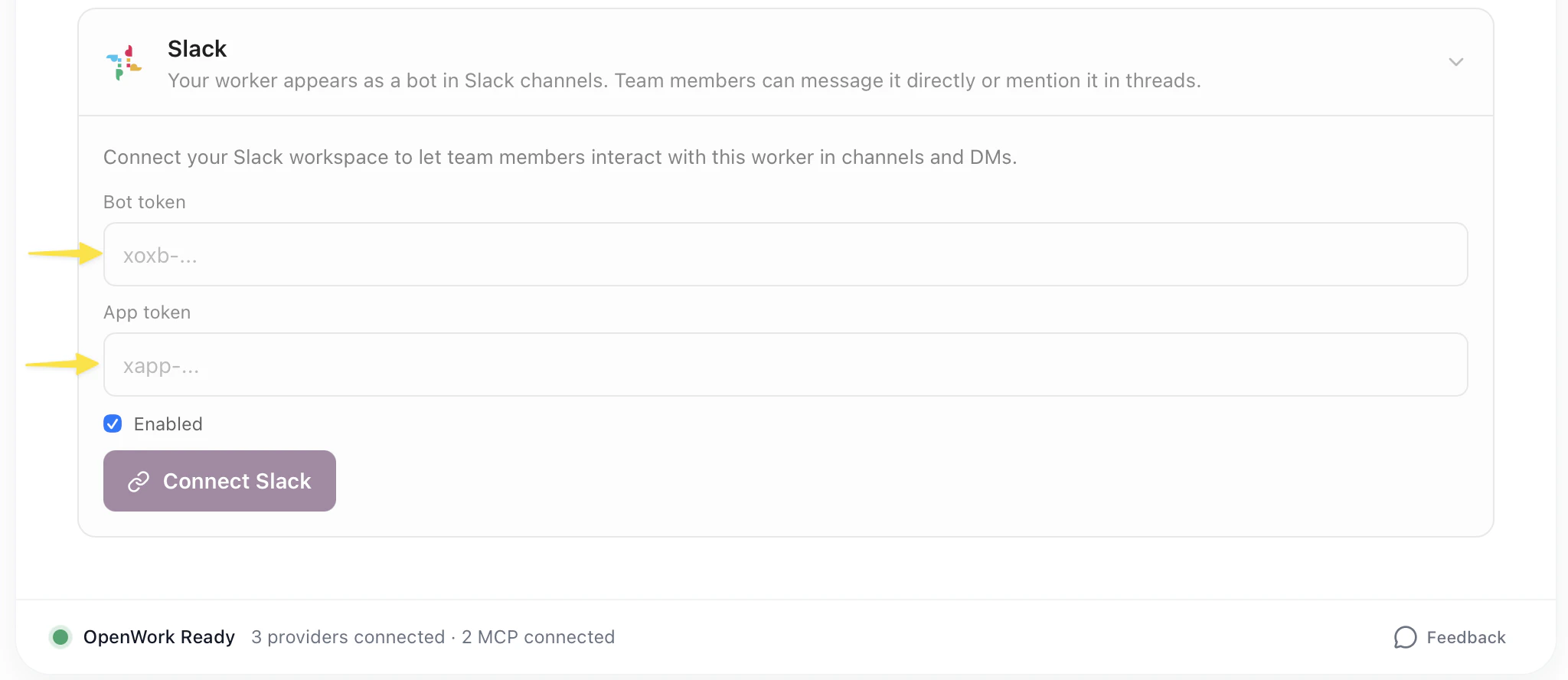
xorb- and xapp- tokens into Settings > messagingSend test message
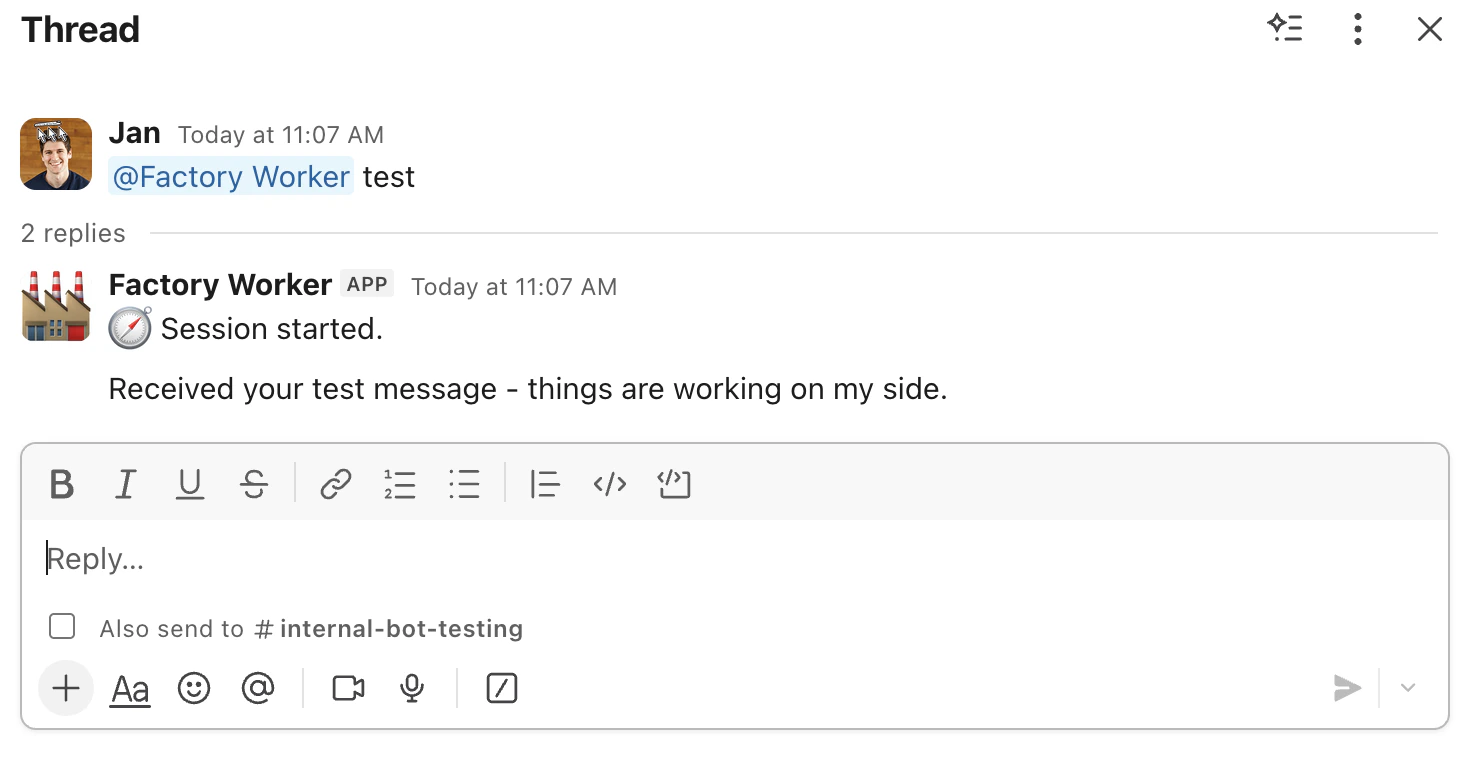
Test the bot by sending a message. It should respond instantly indicating that a new session has been initiatied and then send the actual response afterwards. For now, you will have to use@slack-bot-name every time you want to talk to it.